
Free online invoicing software
with KSeF support

Subscribe to our newsletter
Leave your email address and receive guides supporting your business’s growth once a week

How to download and print a fiscal report from the online cash register – UBER?
We have prepared a short and simple step-by-step guide for you.
1) Sign in to the online cash register portal https://mojakasa.online/login
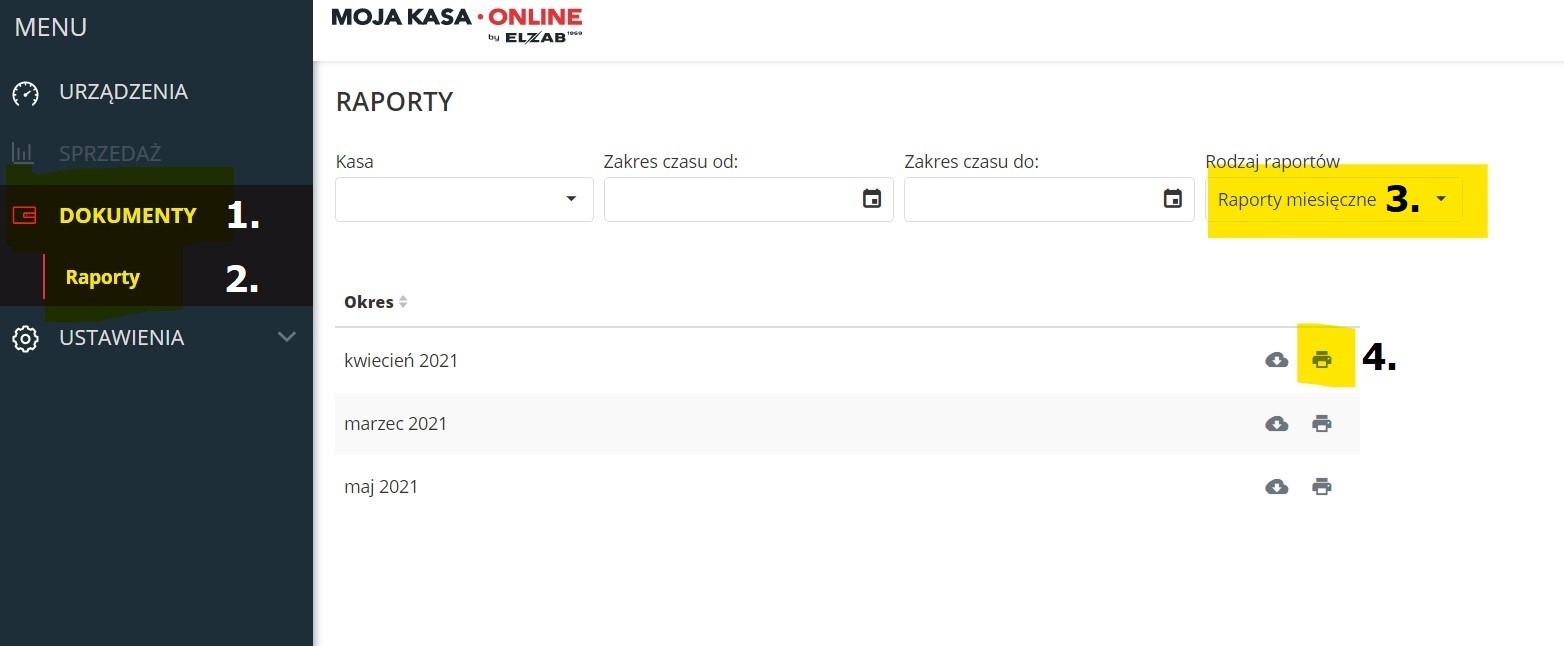
2) Select “DOCUMENTS” from the bar on the left.
3) Then select “Reports”.
4) At this point daily reports appear by default. However, a report for the whole month is needed for settlement, so under “Report type” select “Monthly reports”.
5) To download a monthly report, click the printer icon next to the month you want to download.
6) The monthly report appears along with a print option. Change the print option on the right to “Save as PDF” or, on an English-language computer, “Print to PDF”.
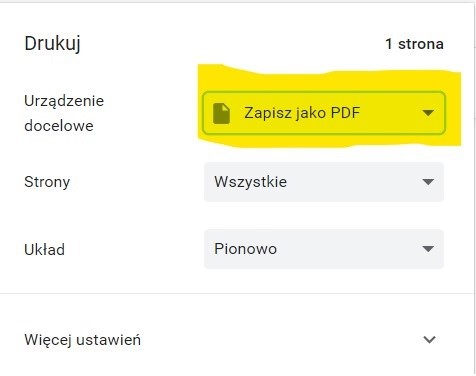
7) The fiscal report has been saved as a PDF on your computer.
Interested in this article? Explore our services and see how we can help:
Our specialists can help you put this knowledge into practice.
Summary
Have questions? Contact us by clicking HERE!

Interested in this article?
Enter your email address and once a week you will receive practical materials and tips to help you grow your business.

Book a free consultation
Grow your business with accounting combined with advisory services:

or